For many cross region gamers, the biggest challenge in JP PSN is one, registering yourself as a member on this store, and two, purchasing the games that you want. While we already wrote a guide for you to register yourself in JP PSN here, we have not written a guide for you to made a purchase from JP PSN. Well don't worry since in this post we are going to give you step by step of this purchasing process, not only for JP PSN, but also on US PSN, which apply as well to other English-language PSN Store such as UK and HK.
In this post we write how to really purchase a title from PSN store, from beginning until you register it for auto-download in your console. This post is not covering how to buy subscription, that will be in another future post, however you can use this one as a guide too, although indirectly.
Okay let's start, we opened one of our post, then choose a title that we wanted to buy. We imagine everyone would do the same, click on a title in order to see it on PSN store, either just to check or to purchase.
Before you start purchasing any titles from any PSN, you need to purchase top-ups, you can purchase them from play-asia. Read also our guide for topping up your PSN account from PC.
Before you start purchasing any titles from any PSN, you need to purchase top-ups, you can purchase them from play-asia. Read also our guide for topping up your PSN account from PC.
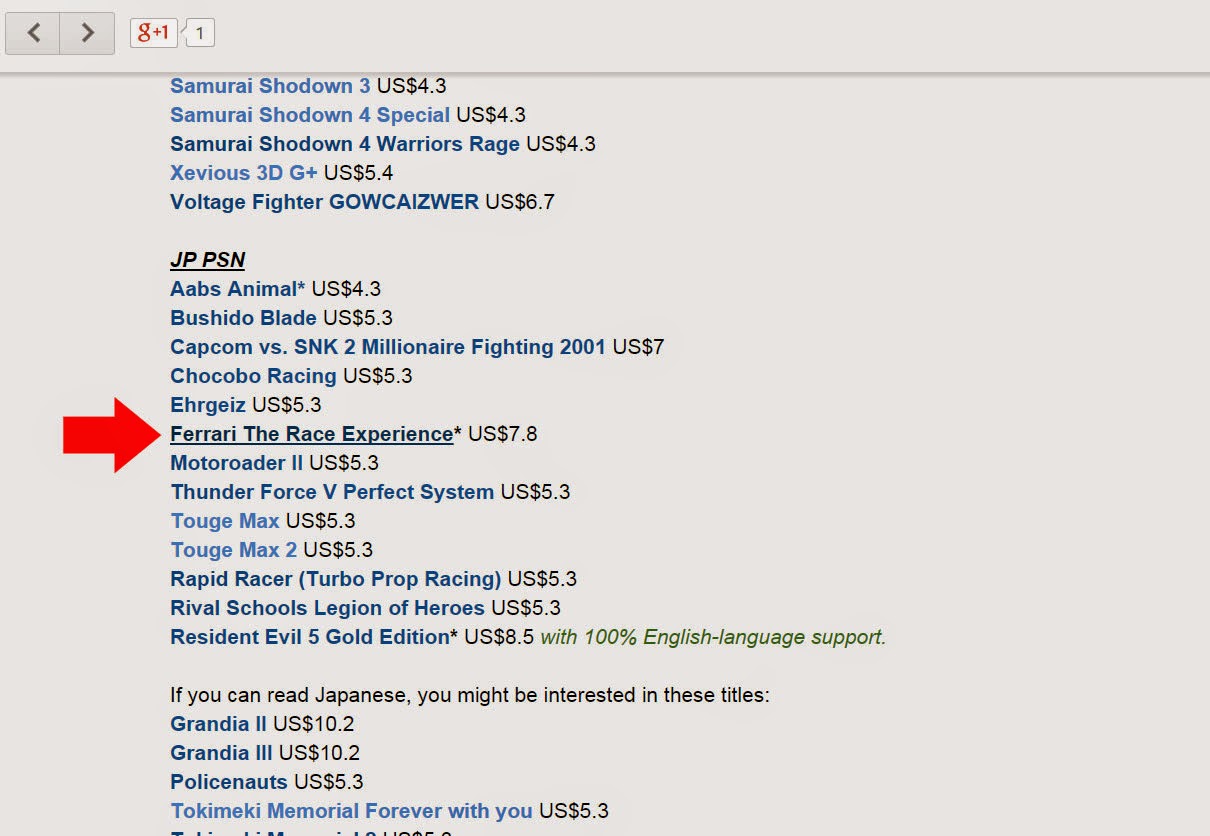
The title we choose is pointed with the big red arrow in the picture. If you wondering why we choose that, well, because this is quite an infamous title, so I am curious about it, especially since it was released on 2010 was never been once offered as a sale nor IGC, the price is alot cheaper in JP PSN (at the time of purchase), it is digital only, game is in English, and I am a fan of racing genre.

If you forgot to log yourself out since your last session, you will see screen like above, you have to sign out first and close the tab after it finished loading. You may need to click the link again in our post after that. If you don't see screen like above, skip this.
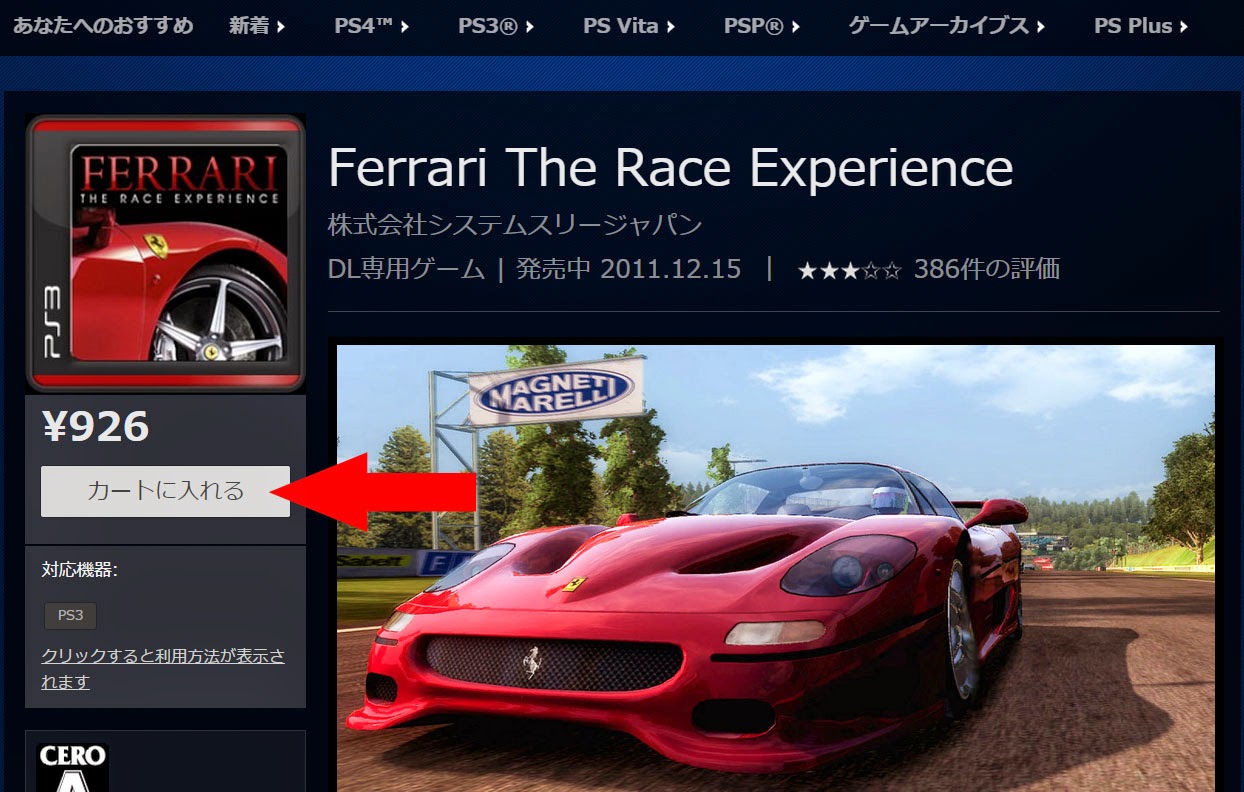
Okay we are now arrive at the game page. Click on the button pointed by red arrow to add it to cart/basket.
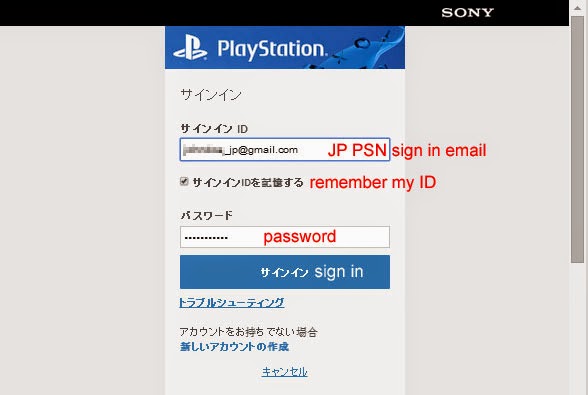
If you haven't signed in, the next screen will prompt you your login. If you don't see it, skip this step.
This title is in JP PSN, so I write my email that is linked to the JP PSN account, and yes you can sign in to Japanese account from US or any PSN Store. It will redirect you to the Japanese store afterward.
 If the game is successfully registered into your cart/basket, you'll see a pop up like above. You can either choose to continue browsing the store or immediately see your cart/basket to complete this purchase.
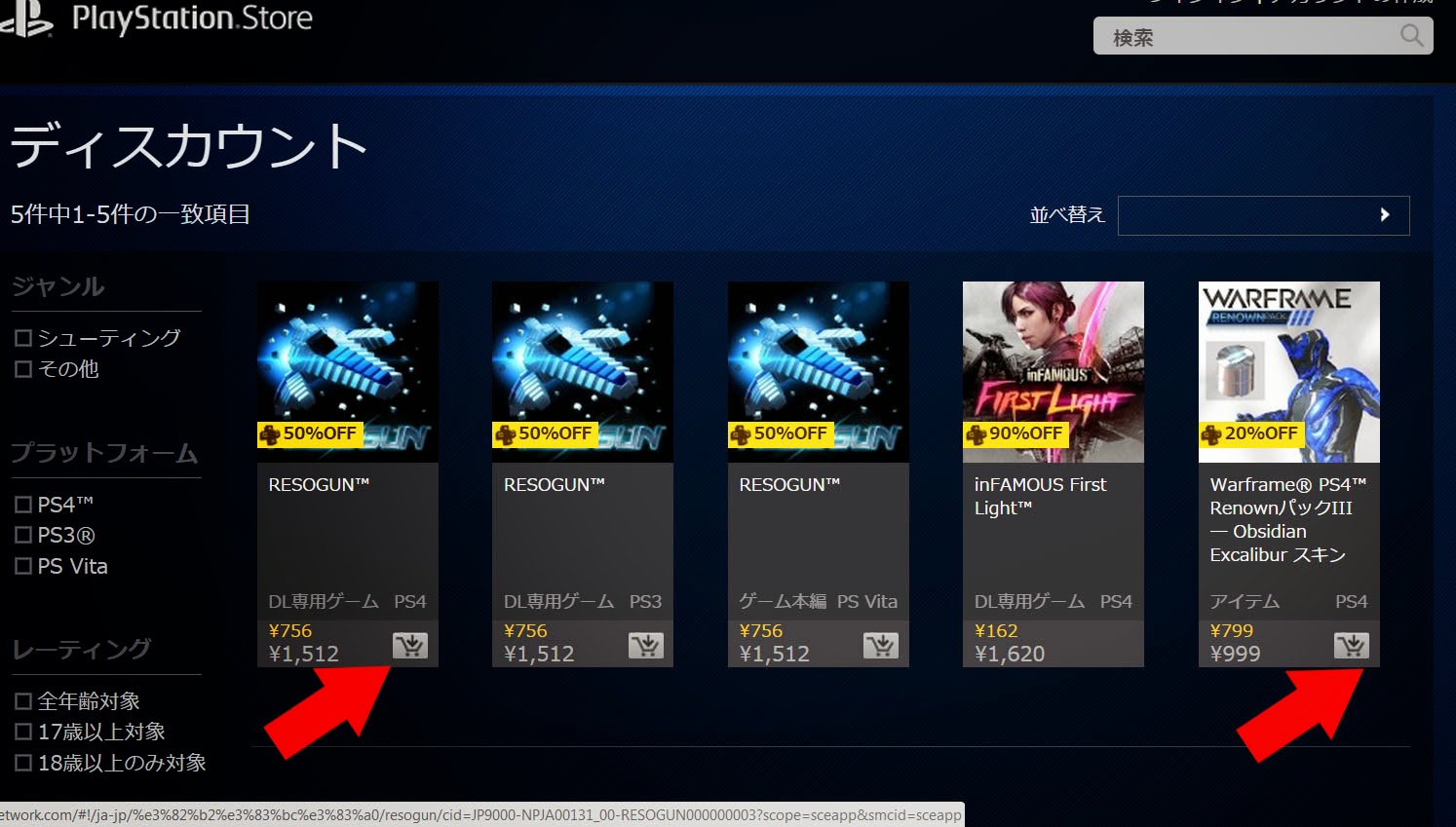
In case you are looking for another titles, you can just click the cart button on lower right on each titlebox, pointed by red arrow above. Some titles that has no this button may only be available for single transaction and may not be combined with any other items. To see your cart, click the mini cart logo just next to your login ID in upper right of the screen, it is cropped out from the picture above though.
 This is your cart, you can enter a 10 digits promotional code if there are any, don't forget to click apply afterwards. If there are no codes, just click next. It is the greyish button with the longest Japanese text.
 If your promotional code is valid, you'll see a screen like above. Just click next. If you have no codes, skip this step.
 Press the purchase button to.. well.. purchase
 Depends on your security setting, you might be asked for your password again, just type in again. If it is not asking you, skip this step.
 Done! That's it! In my case I've just got for myself the cheapest Ferrari The Race Experience on PSN Store. A title that almost never being offered in sale. Anyway, to make your console downloading the game you've bought automatically, click the button pointed by the red arrow, press each button for one you'd like to download.
Afterward, just turn on your console and sign in as JP PSN account, and the magic happens.
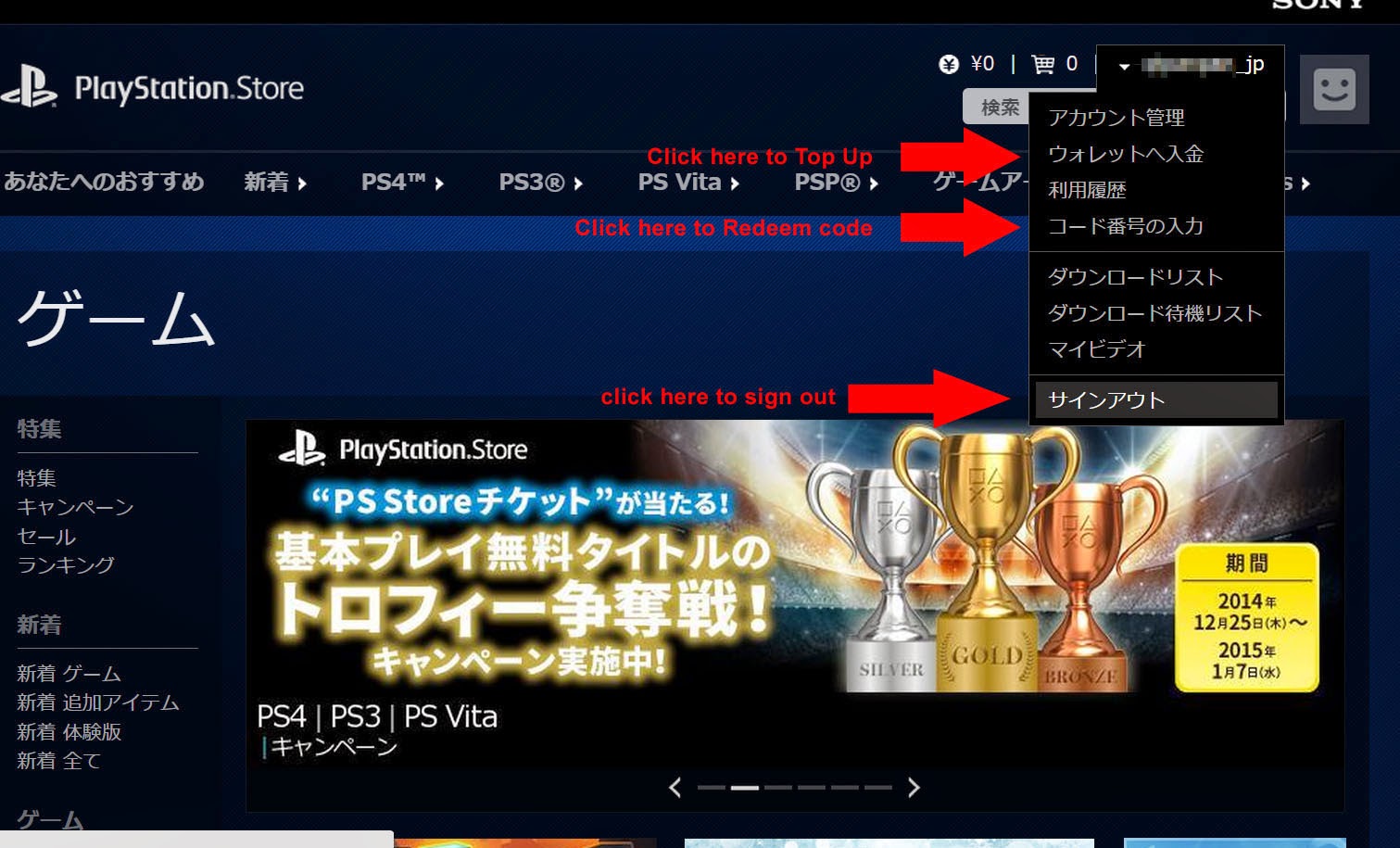
Although the purchase process is done, don't forget to sign yourself out. Or otherwise you can't see the content of PSN Stores in the other regions.
NEXT: we also have some games to get from US PSN, we documented it too as a guide for you to purchase from any English PSN Stores, including US/UK/HK PSN that we prominently featured.
Only for UK/US PSN stores, you can purchase the top-up codes in Poundsterling or US Dollar from CDkeys.com, the advantage is clear, most of the price are lower than the face value and it is payable with Paypal. So these should be your first option. If you think it is troublesome, you can also buy it from play-asia. Here again the link to our guide for topping up your PSN account from PC.
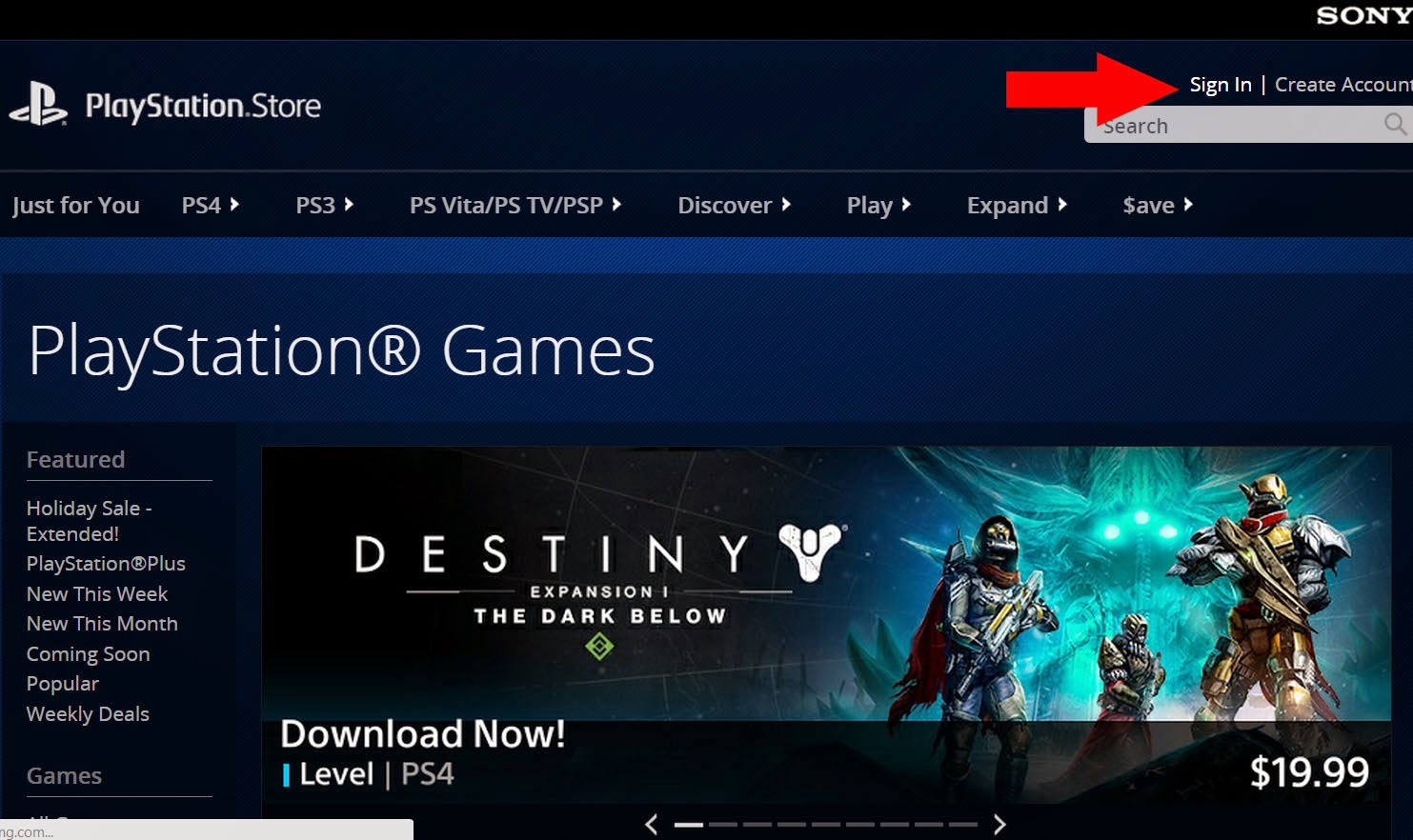
Assuming you're not logged in, click Sign In in the top right part. The JP PSN display this in exactly the same position written in Japanese.
 Type in your Login ID and password. We are going to purchase something from US PSN, so we use US PSN account.

 If you opened a game page, clicking the Add to Cart/Basket does the same thing.
 Once you added the game into your cart/basket, you'll see this pop up. You can either continue browsing another title or show your cart to checkout immediately.

 If you have a promotional code, insert here. Then click apply afterward.
 If your code is valid, the screen will show the calculation and price after discount. Click proceed to checkout if everything is no problem.
 Click confirm purchase to err.... purchase.
 Depends on your security setting, you might be asked for your password again, just type in again. If it is not asking you, skip this step.
 You'll see a big thank you from PSN store for giving them money. As you see we actually backtracked and removed one game from above. So in the end we only purchased 3 titles. Click Download to your PS4/PS3 to download the game into your consoles.
Afterwards, turn on your console and sign in to the PSN account you've just used to purchase. Our example above is US PSN, so we are signing in to our US PSN on our PS3, and the magic happens.
 The purchase process is done, but never forget to sign yourself out. Or otherwise you can't see the content of PSN Stores in the other regions.
Okay we are now arrive at the game page. Click on the button pointed by red arrow to add it to cart/basket.
If you haven't signed in, the next screen will prompt you your login. If you don't see it, skip this step.
This title is in JP PSN, so I write my email that is linked to the JP PSN account, and yes you can sign in to Japanese account from US or any PSN Store. It will redirect you to the Japanese store afterward.
In case you are looking for another titles, you can just click the cart button on lower right on each titlebox, pointed by red arrow above. Some titles that has no this button may only be available for single transaction and may not be combined with any other items. To see your cart, click the mini cart logo just next to your login ID in upper right of the screen, it is cropped out from the picture above though.
Afterward, just turn on your console and sign in as JP PSN account, and the magic happens.
Although the purchase process is done, don't forget to sign yourself out. Or otherwise you can't see the content of PSN Stores in the other regions.
NEXT: we also have some games to get from US PSN, we documented it too as a guide for you to purchase from any English PSN Stores, including US/UK/HK PSN that we prominently featured.
Only for UK/US PSN stores, you can purchase the top-up codes in Poundsterling or US Dollar from CDkeys.com, the advantage is clear, most of the price are lower than the face value and it is payable with Paypal. So these should be your first option. If you think it is troublesome, you can also buy it from play-asia. Here again the link to our guide for topping up your PSN account from PC.
========================================================
Assuming you're not logged in, click Sign In in the top right part. The JP PSN display this in exactly the same position written in Japanese.
To put a game in your cart/basket, just click the little cart button.
If your game is crossbuy and you try to add the other version into your cart, you'll see an error message like above. In our case we added the PS3 version of The Unfinished Swan, then clicked the PS4 version and we got this message, it means we can't purchase the PS4 version since it is already bundled with our PS3 version.
Anyway, after you are done putting everything into your cart/basket, click the mini cart icon (not shown on this picture) on top right of the PSN Store homepage to show your cart, it is next to your ID.
Afterwards, turn on your console and sign in to the PSN account you've just used to purchase. Our example above is US PSN, so we are signing in to our US PSN on our PS3, and the magic happens.
And that's it. We hope this guide helps you.
See also our guide on:
HOW TO TOP UP YOUR JP/US/UK/HK PSN ACCOUNT ON PC
HOW TO PURCHASE A TITLE FROM JP/US/UK/HK PSN STORE ON PC
HOW TO PURCHASE A TITLE FROM JP/US/UK/HK PSN STORE ON PC
follow our twitter @psnworldupdates